Open Notion for the first time and you will likely see one thing: a blank page with a blinking cursor. That empty space is the reason many people quit before they build anything useful. Ready-made notion template ideas remove the blank-page problem, because each one comes with pages, databases, and views already arranged for a real job.
This guide covers 18 digital templates for work, life, and creative projects. You will see what each one contains, who it suits, and how to duplicate it into your own workspace. Every template here is a digital Notion file that runs on a computer, a phone, or an iPad with a free Notion account, so you can start testing right away.
To get the most from this list, skim it by goal first: work, daily life, creator, or student. Then follow the duplication steps in the section about free access. Some templates are free and some are paid, and listings change, so always check the current terms on the product page before you buy or duplicate.
What Are Notion Templates and Why Start With Notion Template Ideas?
A Notion template is a ready-made set of pages, databases, and views that you copy into your own workspace. Instead of building a task table, a project board, and a calendar from scratch, you get them already linked and labeled. You change the names, add your own entries, and keep what works.
The difference between a template and a blank page is mostly time and structure. A blank page asks you to design the system while you are also trying to use it. Good templates include example rows, sensible property types, and views such as Table, Board, Calendar, or Gallery, so you can see how the system behaves on day one. Think of it as a floor plan rather than a finished house. Browsing notion template ideas before you build also helps you see which layouts already match your habits.
Templates also cut decision fatigue. When the main sections are already decided, you can spend your energy on the work itself. They help with habit formation too, since a dedicated habit tracker or weekly review page is easier to use every day than a page you must invent each Monday. Many people look for notion templates free options before they pay for anything, and that is a sensible way to begin.
A free Notion account is enough to duplicate most of the templates in this list. You do not need a paid plan to get started, though some creators sell add-ons or premium versions. Treat every template as a starting point. Expect to rename sections, delete what you do not need, and reorder pages until the system feels natural.
Eighteen Notion Ideas for Work, Life and Creative Projects
The list below follows the order of the source collection. Each entry names the best use case, the main sections inside, and a button to the product page. Browse these notion template ideas one by one, read the description under each picture, and decide whether the layout matches how you already work.
A Brainstorm Library for Creators
Thirty Concepts To Test Early

A collection of thirty template concepts designed to help creators and sellers pick a Notion layout worth building. The approach is simple: solve a real problem, and the rest falls into place, even if you are only one step ahead of your audience.
This is best for creators who want a steady stream of layout ideas to test, adapt, or sell. Use it as a menu rather than a single workspace: pick two or three concepts, build a rough version, and see which one saves you time. It is also useful as visual notion inspo when you are stuck on how to group pages.
Capturing Content Ideas Before They Fade
Idea Pipeline Board

A workflow system for solopreneurs and creators who have more ideas than hours. It collects concepts for videos, articles, and digital products, rates each one for profit potential and feasibility, and moves promising ones through a four-stage board from draft to launch-ready.
Choose this if your problem is idea overload rather than execution. The validation matrix asks you to score each idea before you start, which prevents weeks spent on projects nobody wants. The Kanban board then shows what sits in draft, review, scheduled, and ready at a glance.
Turning Scattered Thoughts Into a Plan
Brainstorm To Project Workspace
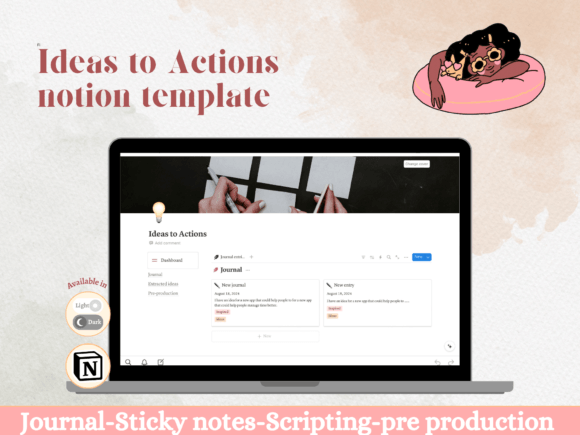
A four-section system that moves an idea from journaling to a working plan. It includes a journal, sticky-note style idea cards sorted by priority, a scripting area for step-by-step outlines, and a pre-production checklist with deadlines and team assignments.
This suits people who plan videos, events, or side projects with collaborators. Journaling clarifies the idea, priority cards show what to pursue first, and the checklist keeps delegation visible. If you only need a plain to-do list, a lighter option will serve you better.
Organizing Digital Product Launches
Digital Product Launch Planner
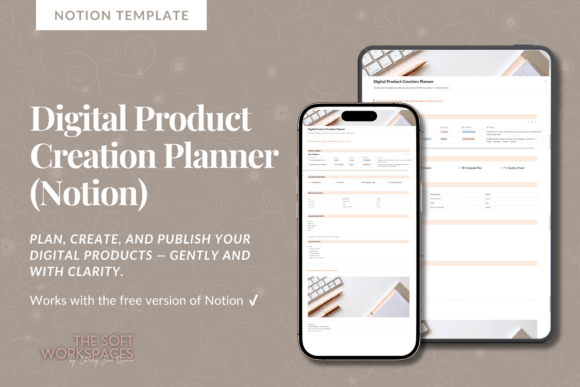
A calm, beginner-friendly planner for creators and designers who want to move digital products from idea to finished item. It covers product ideas, creation steps, mockups, descriptions, and launch notes in one workspace, with no formulas or automations to set up.
Designers, Etsy sellers, and template makers will get the most value here. A product ideas database tracks one row per product, while the creation checklist walks you through brainstorming, building, organizing files, and quality checks. Because there are no complex dashboards, you can start in ten minutes.
Keeping Links, Prompts and Logins in Order
Links, Prompts And Notes Organizer
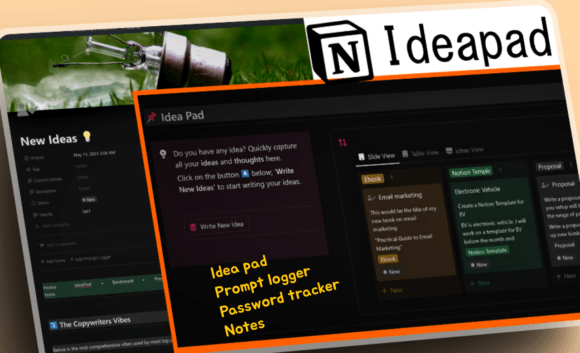
A personal organizer that collects quick thoughts, saved web links, prompt ideas, login details, and general notes in one place. Built for people whose information is scattered across too many apps and tabs, it tames everyday digital clutter without a separate tool for each job.
Pick this when your bookmarks, notes, and AI prompts live in five different places. Store only what you are comfortable keeping inside Notion. For passwords, use a dedicated password manager with strong encryption, and keep the Notion page for references rather than secrets.
A Capture-and-Review Setup for GTD Fans
Inbox To Done Capture System
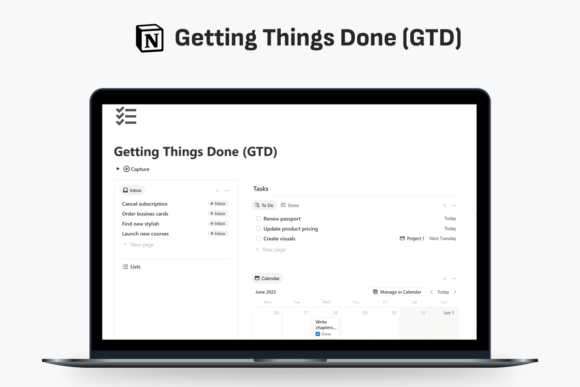
Built on the Getting Things Done method, this template captures every idea, task, and project in one system. It includes separate sections for Inbox, Next Actions, Projects, Waiting For, Someday/Maybe, and Reference, so each item has a clear home. The listing describes it as free, so confirm the current terms before you duplicate it.
This is a good fit for readers who already follow GTD or want to start. Empty the inbox daily, move each item into a section, and run a weekly review to keep everything current. If you are new to GTD, read a short overview first so the sections make sense.
One Place for All Your AI Prompts
AI Prompt Vault Workspace

A connected prompt management system for creators, freelancers, and AI users. It stores prompts with tags and sample outputs, keeps saved ChatGPT responses for later reuse, captures prompt ideas, and documents repeatable workflows in a small knowledge center. All databases are linked, so nothing sits in isolation.
Heavy users of ChatGPT and similar tools benefit most, especially writers, digital marketers, and students. The response archive lets you reuse strong outputs instead of regenerating them, and the workflows section turns a good prompt chain into a process you can repeat.
A Visual Pinboard for Sticky-Note Thinkers
Visual Sticky Note Pinboard

A flexible digital pinboard inspired by sticky notes. Notes can be dragged into grids, grouped by topics such as Personal, Marketing, and Calendar, linked to deadlines in a monthly calendar, and color-coded or tagged for priority. It works for brainstorming, class notes, and resource collections.
Visual thinkers, designers, and students who learn by arranging ideas will find this useful. Build one board per project, then tag notes with priority labels so urgent cards stand out. The calendar view is handy for turning a messy board into dated tasks.
Planning a Small Shop’s Social Media Calendar
Handmade Shop Content Calendar

A gentle content planner for candle makers and small product businesses. It includes a calendar with Calendar and List views, an idea bank sorted by education, promotion, behind-the-scenes, and seasonal posts, caption hooks, a launch checklist, and a hashtag library. Everything is preset, so you can duplicate it and begin planning posts right away.
This works well for shops that post several times a week and struggle with ideas. The idea bank keeps inspiration in one list, while the hooks section gives you a starting line when you feel stuck. The listing notes that it works with the free version of Notion.
Writing Ad Hooks That Stop the Scroll
Ad Copy Hooks Library

A sleek workspace for drafting, storing, and organizing ad content. Log hooks by type, such as curiosity, emotion, or social proof, save AI-generated prompts, sort campaigns by goal and audience, and rate your best-performing lines with tags and filters. Performance fields for clicks, conversions, and engagement are included.
Copywriters, performance marketers, and content creators can use this to see which hook styles actually earn clicks. Over a few campaigns, the ratings reveal patterns you can reuse, so each new ad starts from proven material rather than an empty field.
A Lightweight Prompt Library
Simple Prompt Storage Board
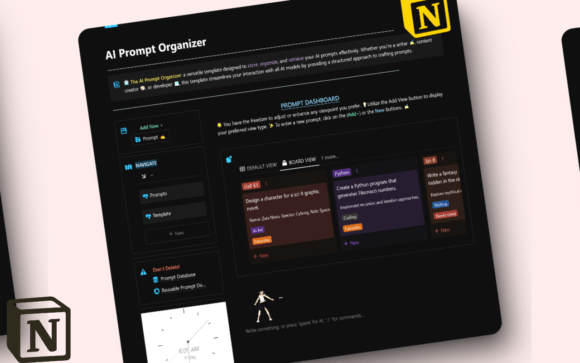
A clean, straightforward layout for storing prompts in one organized space. Custom tags make retrieval quick, a search tool locates the prompt you need in seconds, and an idea log captures sudden thoughts before they slip away.
If a full AI hub feels like more than you need, this simpler option suits writers and designers who only want a prompt library. Start with a few tags, use the search function often, and add new categories only when your collection grows.
A Reflective Path Toward Purpose and Habits
Purpose And Habits Journey
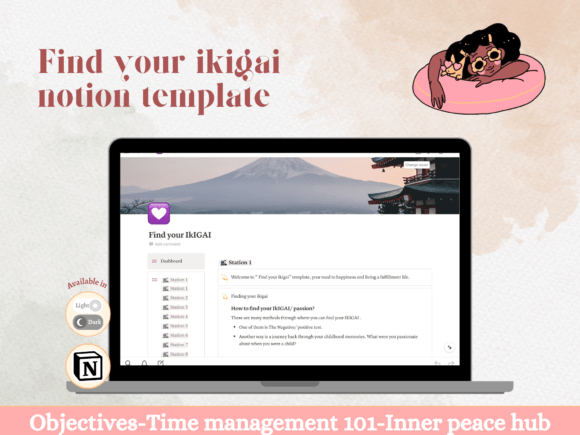
A guided, reflective system built around the Japanese idea of ikigai. Across fifteen stations it covers objectives, meaningful habits, time management, the Pomodoro technique, the 80/20 rule, social circles, decision making, inner peace, and a Kaizen dashboard based on the PDCA cycle.
This is a longer project rather than a quick setup. Plan to work through a few stations each week, and treat the exercises as conversations with yourself. It suits people who want to reflect on direction and daily routines, not only track tasks.
One Home Page for Daily Life
Daily Life Command Page

A free personal dashboard that brings together a task list, projects, a meal planner, goals, health and finance trackers, a learning planner, book and watch lists, workout routines, a Pomodoro timer, a playlist section, skincare routines, and a wishlist, all on one home page.
This is the right pick if you want one place for everything personal and you do not mind scrolling. Start by using only the sections you need, such as tasks and finances, and add the rest later. Confirm the current terms on the listing page before you duplicate it.
A Simple Weekly View for Busy Weeks
Week At A Glance Layout
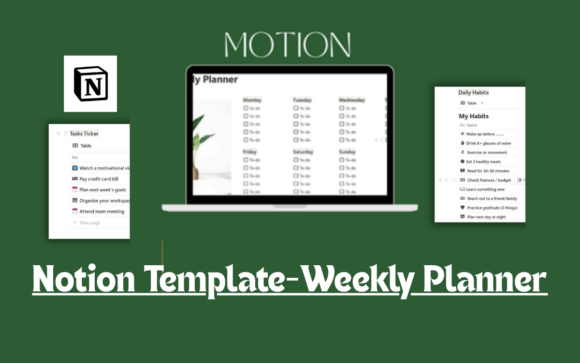
A clean weekly planner that gives you an overview of the entire week in one place. It includes a tasks ticker, a habit tracker with daily checkboxes, space for notes and reflections, a calendar, and full customization for students, professionals, and planners alike.
This is one of the friendliest entry points for beginners. Set your weekly tasks on Monday, tick off habits each day, and write two lines of reflection on Friday. Because the layout is simple, you can learn the basics of Notion without feeling overwhelmed.
A Minimal To-Do System That Stays Clean
Minimal Daily Task Filter
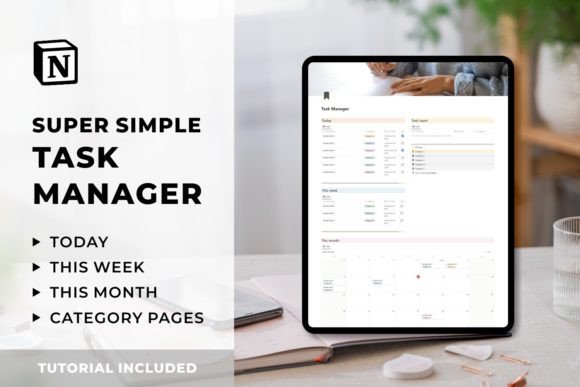
A simple task manager that shows pending tasks filtered by today, this week, and this month, plus a category view. Finished tasks are deleted rather than archived, which keeps the workspace light and reduces mental noise. It includes five category pages with notes and an easy-to-follow tutorial.
Minimalists who want fast filtering will appreciate this setup. The template is optimized for desktop, so pages may look different on a phone or iPad. Use it on a computer for planning, and check the mobile view before relying on it for daily reminders.
Preparing Etsy Listings With Less Stress
Listing Prep Before Publishing
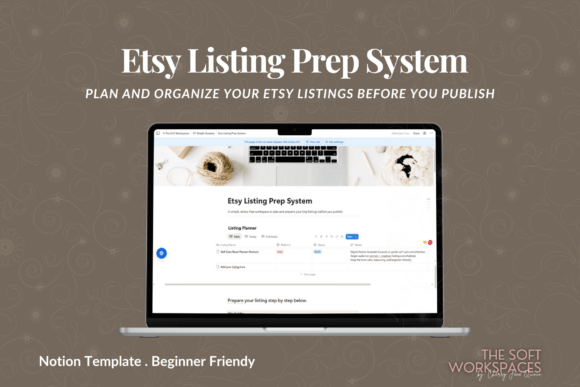
A structured system for planning Etsy listings one at a time. It includes a listing planner database with Table, Ready, and Published views, a title builder, a tags brainstorm with a keep column, a photo plan, and a final checklist, so nothing is missed before you publish.
Etsy sellers and digital product creators will get the most from this. Create one row per listing, move each from draft to ready to published, and use the tag column to refine keywords before uploading. It keeps preparation separate from the rush to publish.
A Stylish Workflow for Getting Work Done
Calm Productivity Workflow Dashboard

A polished productivity dashboard for organizing tasks and projects with a visual style. It includes a to-do list, calendar integration, a projects overview, Pomodoro timer and playlist sections, and a notes area for ideas that might otherwise get lost.
This suits people who like GTD-style organization and want a more attractive interface. Embedded timers and playlists can behave differently across devices, so test them on your phone before relying on them. A good visual setup also makes daily check-ins easier to keep.
A Holiday Season Planner for Gifts and Events
Festive Gifts And Events Planner
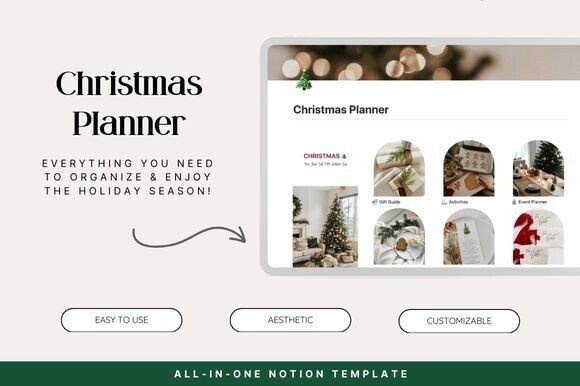
A seasonal organizer that tracks gift ideas by recipient, holiday cards, decorations, budgets, menus with grocery lists, festive activities, events, giving, wishlists, a journal, and a 40-task holiday checklist. It keeps the busy season organized from the first gift idea to the last thank-you card.
Families and hosts will benefit most. Use the budget tracker to spread spending across categories, and check the gift tracker before shopping so you avoid duplicates. Because the holiday season is short, set up the template early and treat it as a seasonal workspace you archive afterward.
Notion Inspo: Making Your Workspace Look Good
Aesthetic setups are not just decoration. A clean, consistent workspace makes you more likely to open it and actually use it. Pick a color palette of three or four colors, use the same cover style across pages, and keep icons consistent so your eye knows where to look.
Small widgets such as progress bars, quote blocks, or an embedded playlist can add personality, but use them sparingly. If a page feels busy, remove one element and see whether your focus improves. Good layouts breathe, and white space is a feature rather than wasted room.
Free Notion Templates and How to Duplicate Them
Free access is a common question when you look for free notion templates. Creative Fabrica sometimes offers a limited free trial, which is a temporary offer rather than permanent free access. Some listings in this roundup describe themselves as free, while others are paid products. Check the product page and the current offer terms before you start, and note any renewal or cancellation rules.
Many readers search for notion template ideas free of charge, and the answer depends on the source. Testing a free layout is a sensible way to learn what you need before you spend money. A test run also shows quickly whether the structure matches your routine.
Step-by-Step Duplication
- Open the template link from the product page.
- Log in to your Notion account. The free plan is enough for most templates here.
- Choose Duplicate to copy the template into your own workspace.
- Rename pages, delete unused sections, and adjust properties and views to fit your work.
Free Templates Versus Paid: How to Decide
Start with one template that matches your main goal, and use it for two weeks before you add anything else. If the free option covers your needs, there is no reason to pay. If you keep running into missing features, a paid template with more databases may be worth the cost.
Notion Planner Ideas for a Work and Life Setup
Good notion planner ideas begin with a simple question: what must this system do every day? Build your setup around three areas, work, personal life, and creative output, and keep each one small enough to maintain.
Work Setup Ideas
A task inbox, a projects database, and a weekly review page form the core. Add a meeting notes page linked to projects, so every discussion produces follow-up items that are easy to find later.
Life Setup Ideas
Pair a habit tracker with a meal planner, a simple budget page, and a reading list. End each week with a reflection page that asks three questions: what went well, what drained my energy, and what will I change next week?
Creator Setup Ideas
An idea bank, a content calendar, and a launch checklist keep production moving. Link a prompt library to your content workflow so scripts and captions start from wording you have already tested.
Notion Pages Ideas: Building Your First Setup
The most useful notion pages ideas are the ones you can finish in an afternoon. Start with the home page, then add a single database, then connect the two. Layer in more only when the first part feels natural.
Create a Home Page
Make one main page with linked views of today’s tasks and this week’s goals. This becomes the screen you open every morning, so keep it short and readable.
Build a Database and Its Views
Create one database per topic, such as tasks, projects, and habits. Add filters and at least two views, such as Table and Calendar or Board, so you can switch between a list and a timeline when your plans change.
Link Pages Together
Use relations to connect projects to tasks. Keep the number of databases small, because every extra one adds upkeep and makes the system harder to read.
Customize Without Breaking It
Change colors, icons, and cover images first. Edit properties carefully, because deleting a property can break views that depend on it. Duplicate the page before any large change, so you can return to a working version.
Notion vs Other Apps: Which Fits Your Routine?
Notion works best when information needs to connect. Tasks link to projects, projects link to notes, and notes link to people. If you are weighing notion template ideas against simpler tools, start by asking how connected your information really needs to be.
Todoist suits quick task lists with reminders. Google Calendar handles scheduled time well. Obsidian appeals to people who prefer linked notes stored in plain files, and Apple Notes is fast for quick capture. Choose Notion when you need databases, views, and linked data in one place.
A simple rule helps: use Notion when you need linked data, and use a single-purpose app when you only need to be reminded.
Using Your Notion Template on Phone and iPad
Notion works across computer, phone, and tablet, so a duplicated template can follow you. Layouts change with screen size, though, and a wide dashboard that looks clean on a desktop can feel crowded on a phone.
Mobile-Friendly Layout Tips
Keep dashboards to one column where possible, and prefer Table and List views over wide Board views on small screens. Fewer side-by-side blocks means fewer frustrating horizontal scrolls.
iPad Workflow
The iPad is a strong choice for weekly planning and review, because the larger screen shows more at once. An Apple Pencil works well for quick notes on pages where handwriting-friendly blocks make sense.
Check Widgets and Embeds
Test timers, playlists, and calendar embeds on each device before you rely on them. Some embeds need to be reconnected or behave differently on mobile, and it is better to learn that on a quiet Sunday than during a busy Monday.
Common Mistakes With Notion Templates
- Overbuilding: adding every section from a large system on day one. Start with three sections and grow from there.
- Skipping the review: never checking whether the system still fits. Add a ten-minute weekly review page.
- Storing sensitive data: keeping passwords on a shared page. Use a dedicated password manager instead.
- Changing properties randomly: breaking views you rely on. Duplicate before big edits.
- Choosing by looks alone: an attractive layout that does not match your routine gets abandoned within a month.
Frequently Asked Questions About Notion Template Ideas
Are These Templates Really Free?
Some are described as free, others are paid, and access can depend on a current trial offer. Check each listing, and remember that a Creative Fabrica trial is temporary.
Do I Need a Paid Notion Plan?
No. Most listings say a free Notion account is enough. Confirm this on each product page before you start.
Can I Use These Templates on iPhone and iPad?
Yes. Notion works across devices. The minimal task manager in this list is optimized for desktop, so check how it looks on smaller screens.
How Do I Duplicate a Template?
Open the link, log in to Notion, choose Duplicate, and customize the copy. Your duplicate is separate from the original, so your changes will not affect the source.
Which Template Suits Beginners Best?
Start with the simple weekly view or the minimal to-do system. Both have clear structure, and you can expand into bigger setups once the basics feel comfortable.
Which Template Works for Students?
The visual pinboard for ideas pairs well with the weekly view for schedules. Add a simple habit tracker for study routines, and you have a light but complete system.
Can I Change a Template Without Breaking It?
Yes. Rename, recolor, and hide sections first. Duplicate the page before you delete any properties, and keep a backup copy of the version that works.
Are Templates Safe for Private Data?
Use them for general organization. Keep passwords and sensitive documents in a dedicated password manager or another secure tool, not on a shared Notion page.
The Bottom Line
Notion template ideas are valuable because they replace guesswork with structure. Instead of staring at a blank page, you start with pages, databases, and views that already reflect a real job, a creative process, or a personal routine. Across this list of eighteen picks, you have seen options for work planning, daily life dashboards, idea capture, prompt management, shop content, holiday organization, and more. Each one solves a different problem, and that variety is the point.
Choosing well comes down to goals rather than looks. Ask yourself which problem hurts most right now. If you lose track of tasks, start with a weekly view or a minimal task manager. If ideas pile up without action, the idea pipeline or the brainstorm-to-project workspace will fit better. Creators who sell or publish often benefit from the content calendar or the ad copy library, while readers who live across many apps will get more from the organizer for links, prompts, and logins. An aesthetic layout matters too, but only when it supports the way you work.
Keep the rollout small. Pick one template, duplicate it, and use it for two weeks before adding anything else. Rename sections so they match your own vocabulary, delete what you do not need, and set a ten-minute weekly review. This habit does more for your results than any clever formula. A template is only as useful as the routine you build around it, and most people abandon systems because they change too much too soon.
It also helps to think in layers. Start with a base layer that handles capture and daily tasks, then add a second layer for projects or goals once the base feels natural. Many readers try to build everything at once and end up with a dashboard they never open. Layering keeps each step manageable, and it lets you swap one template for another without losing the rest of your workspace. Your system should grow with you rather than demand a complete rebuild every quarter.
Be honest about cost and access as well. Some templates are free, others are paid, and promotional offers such as a limited Creative Fabrica trial are temporary. Read each listing, confirm the terms, and check renewal rules before you commit. That small step prevents surprises and keeps your budget in line with what you actually use.
Finally, keep an eye on your own signals. If you open the workspace on most days, it is doing its job. If you avoid it for a week, the layout may be too heavy, the sections may not match your habits, or the template may belong to a different season of life. That is normal. Adjust the sections, or move on to a lighter option. The aim is not a perfect page but a reliable routine that helps you act on what matters.
Your next step is simple. Choose the template that matches your biggest goal, open its link, and duplicate it into your workspace today. Give it a fair test, notice what feels clumsy, and adjust. A well-fitted system feels less like homework and more like a calm place to start your day. Share your favorite setup in the comments, and keep refining it as your work changes. Notion template ideas are only the beginning of the story.
Worth Checking Out
22 Notion 2027 Planner Templates That Make Every Week Feel Lighter

