Your workday rarely lives in one place. Tasks sit in one app, meeting notes in another, and deadlines hide in a calendar you forgot to check. A well-built notion workspace brings those pieces together, so tasks, projects, notes, and goals sit side by side and link to each other.
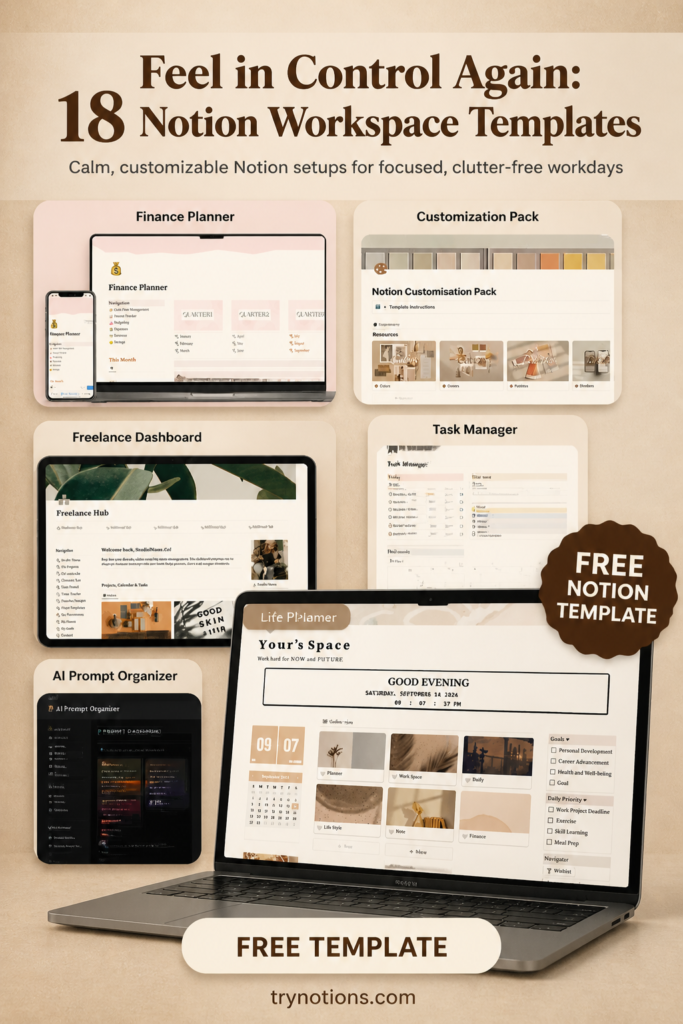
This guide is a practical walkthrough. You will learn what a Notion workspace is, how to set up a simple work dashboard in about 30 minutes, and which templates are worth duplicating. The 18 templates below are digital Notion templates. You duplicate them into your own workspace and use them on a computer, phone, or iPad, with only a free Notion account.
Not every template here is built for the office. Some focus on work, such as freelance dashboards and task managers, while others cover personal planning, hobbies, or creative projects. If you want notion for work that still feels personal, look for templates that match how you plan. Each entry includes a short note on who it suits.
Notion for Work: What a Notion Workspace Really Is
A Notion workspace is the set of pages you build and share in the app. A page can hold text, images, checklists, and databases. A database is a table of entries, such as tasks or clients, where each row has properties like a status, a due date, or a priority. You can view the same data as a table, a board, a calendar, or a gallery, which is why one setup can answer many different questions.
Why bother with one place instead of several apps? Every switch between apps costs attention. When your task list, project notes, and meeting agenda sit in the same notion workspace, you can link them together. A task can point to its project, a meeting note can list action items, and your dashboard shows what is due today without opening five tools.
This approach suits freelancers juggling several clients, employees who organize their own workday, small teams sharing one project tracker, and students balancing a job with classes. A good work notion setup has one core idea: one source of truth for what you need to do and why it matters.
Work Notion Setup: Build a Workday Dashboard in 30 Minutes
You do not need a complicated system to begin. Follow these steps in order, and resist the urge to build everything in one sitting. Your notion workspace takes shape step by step.
Pick four or five main areas: tasks, projects, meetings, notes, and goals.
Create one database for each area with a status property (Not started, In progress, Done) and a due date.
Build a dashboard page with linked views for today’s tasks, active projects, and upcoming meetings. This becomes your notion work dashboard, the first page you open each morning.
Add a daily routine: a five-minute morning review and a short end-of-day cleanup.
If you prefer a shortcut, duplicate one of the templates below and adjust it. A notion daily planner or a notion task manager is the easiest starting point, because each one focuses on a narrow job.
Notion Template for Work: 18 Ready-to-Duplicate Picks
Below are 18 digital templates, presented in the order of our catalog. Each entry explains who it suits and what it includes. Several of these work well as a notion template for work, while others cover personal planning, hobbies, and creative projects. The list also offers notion template ideas work users often start with. Once duplicated, each one sits inside your own notion workspace, so you can change it as your routine changes.
Study, Work, and Life Planner Set
All-Round Life Planning Board

Built for students and professionals who want study, work, money, and goals in one place. Monthly, weekly, and daily planner pages keep your schedule on track, while a workspace page handles tasks, projects, and meetings. A study planner holds reading lists and class notes, and finance and lifestyle pages cover budgeting, travel, and health goals.
Small Business Money Tracker
Cash Flow And Profit Dashboard

Made for small business owners and side hustlers who want money matters in one view. Track cash flow, annual results, net profit, budgets, and expenses, then break revenue down by sales channel. Inventory, marketing, utilities, savings, and a year-to-date progress tracker round out the picture.
Branded Covers, Dividers, and Palettes
Consistent Look For Every Page

Give every page a cohesive, branded look with aesthetic covers, minimalist dividers, font choices, and color palettes that match your style. Covers can be customized in Canva, so your whole notion workspace feels like one polished system.
Freelance Client Work Command Board
Freelancer Project And Income Overview

Built for freelancers and solopreneurs who run client work from one place. Think of it as a notion workspace built around client work. The package includes a profile page, four active project workspaces, a synced calendar and task board, a clientele list, a time tracker with hourly rate calculation, and financial insight for invoices and taxes. The dashboard is locked, so remove the lock before editing.
Simple Daily Task Board
Tasks At A Glance By Timeframe
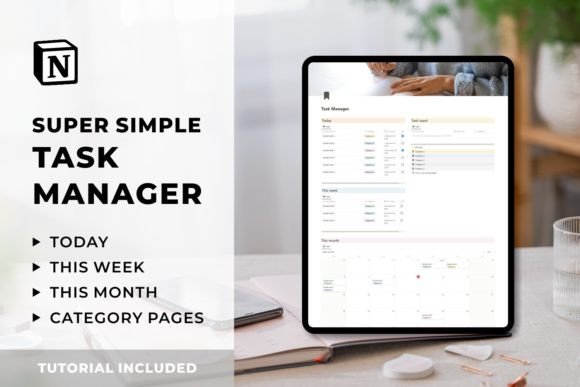
A lightweight task list that shows what is due today, this week, and this month in calendar-style views. Completed tasks are deleted rather than stored, which keeps the space clean. Five category pages hold tasks, notes, and ideas, and a short tutorial walks you through setup. The layout is designed for desktop.
Prompt Library for AI Work
Prompt Library With Quick Search
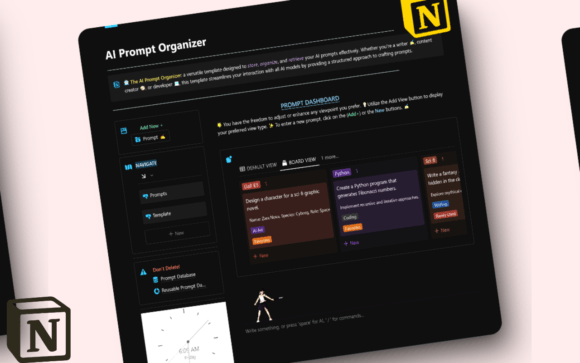
Keep your AI prompts in one organized database with custom tags for quick retrieval. A search tool locates the right prompt in seconds, and an idea log captures inspiration as it strikes. Built for writers, designers, and anyone who relies on AI tools every day.
Second Brain, Habits, Planning, and CRM
Four Systems For Solo Business

Four connected systems in one purchase: a second brain for notes and projects inspired by PARA and Zettelkasten methods, a habit tracker with daily, weekly, and monthly views, a daily planner with time blocking, and a CRM tracker for contacts, follow-ups, and pipelines. Read the license terms before reselling or delivering to clients.
Brand Rules Guide for Teams
Logo, Colors, And Brand Voice Guide

A structured guide for documenting your brand purpose, story, mission, core values, logo variations, color palette, typography, and imagery. A brand personality section helps define your traits, and an FAQ page gives collaborators quick answers. Ideal for freelancers and startups that need a shared reference.
Fantasy Reading Log and Wishlist
Purple Watercolor Reading Tracker

A reading log for fantasy fans who want their books organized and visually pleasing. Record each title with notes, ratings, and favorite quotes, sort books into epic, dark, or urban fantasy, keep a wishlist with release dates, and track reading goals. It sits outside work, but it makes a fun personal routine.
Life Areas and Journal Planner
Daily Tasks, Goals, And Calendar

A single dashboard for personal and work life. Create multiple journals, group main goals by life area, keep a daily to-do list and a shopping list, and view every entry on a calendar. On This Day, Week, Month, and Year views show what needs attention at each time scale, which keeps your notion workspace easy to scan.
Planting and Harvest Tracker
Garden Planning From Seed To Harvest

For gardeners who want planting, watering, fertilizing, and harvest dates in one place. Log each plant from seed or seedling, follow the care schedule through the season, and plan for the next one. It fits small patios, backyards, and community plots, with board, gallery, and table views.
AI Prompt Vault with Saved Outputs
Collections For Ads, Design, And Writing
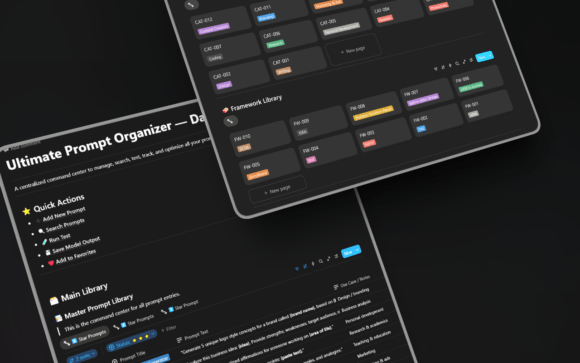
A prompt vault for creators, marketers, and business owners who work with ChatGPT, Claude, Midjourney, and other AI tools. Tag prompts by purpose, save final outputs and improved versions, and filter by collection. A starter prompt set and a creation checklist help you begin right away.
Twelve-Week Goal Sprint Planner
Goals Broken Into Weekly Actions

Condense a year of goals into twelve focused weeks. Define your mission and values, set measurable goals, plan each week, run daily check-ins, and review overall results at the end. The template is available in English only, and all sales are final.
Listing Prep Planner for Sellers
Plan Listings Before You Publish
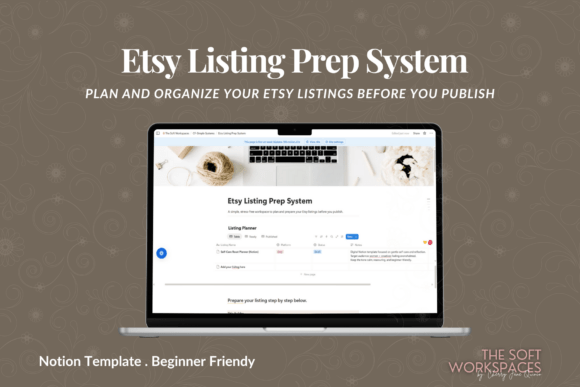
A calm, beginner-friendly system for preparing product listings before you publish. A listing database with Table, Ready, and Published views keeps one listing per row, while a title builder, a tag brainstorm, a photo plan, and a final checklist help you prepare each listing with confidence. Think of it as a clear notion workspace for listing prep, with no complicated formulas.
Drink Recipe Logbook
Favorites, Seasonal Sips, And Experiments

A recipe journal for bartenders and home mixologists who want to keep their best drinks. Store favorite recipes, seasonal recipes, and experimental novelties in clearly separated sections, so every recipe is easy to revisit and refine.
Free Design Toolkit for Creators
Colors, Dividers, And Widgets

A free dashboard of design resources for creators building their own pages. It gathers hex color packs, line dividers, weekly covers, and widgets in a minimalist layout. Check the listing for current pricing, since offers can change.
Habits, Tasks, and Projects System
Habit Progress Charts At A Glance

A minimal system for habits, tasks, notes, and projects. A habit tracker with progress bars and monthly charts shows consistency over time, a task manager sorts to-dos by project or deadline, and a project dashboard tracks goals. It gives you one notion workspace for habits, tasks, notes, and projects, and it works with the free Notion plan.
Hourly Day Plan with Priorities
Morning Routine And Priority Tasks

A clean daily planner with priority tasks, morning and evening routines, sticky notes for quick reminders, and an hourly schedule from 7AM to 10PM. Duplicate it, personalize your routine, and plan your day in about five minutes.
How to Duplicate a Notion Template and Get Started
Getting a template into your own notion workspace takes less than five minutes. The steps are nearly the same for every entry, so once you have done it once, the process feels familiar.
Access to the templates comes through Creative Fabrica. Offers and free trial terms change, so check the current terms on the product page before you commit, and do not assume free access is permanent.
The same steps apply to any notion template work you pick up from this list, whether it is a planner, a tracker, or a dashboard.
Open the template link from the product page.
Click Duplicate at the top right in Notion. You need a free Notion account, which you can create first.
Remove any lock if the template asks you to, such as the locked pages in the freelance dashboard.
Rename databases, adjust views, and set categories so the template matches your real work.
Notion Workspace Template Checklist
A good notion workspace template shares a few core parts. Keep the list short, and you will open it more often.
Must-have pages: dashboard, task list, project tracker, meeting notes, and goals.
Optional pages: finance, client list, habit tracker, and prompt library, only if you use them.
Views and filters: Table for planning, Board for status, Calendar for deadlines, Gallery for references.
Start with one template, use it for two weeks, then add or remove pages based on what you actually open. Many people notice that notion productivity templates grow faster than they need, so trim early.
Notion vs Paper Planners and Task Apps
A paper planner gives you tactile focus and no screen time. A notion workspace gives you search, linked pages, and databases that update across views. Task apps such as Todoist, Trello, or Google Calendar are simpler for pure to-do lists, while Notion combines documents, databases, and tasks in one place.
Many people combine methods. Keep a paper daily plan for focus and use a notion daily planner for projects and reference notes. There is no single tool that suits everyone, so test what you will actually open.
Working From Phone and iPad
Your phone is useful for quick checks: today’s tasks, a new note, or a glance at project status. A notion workspace also fits in your pocket, but building databases and editing many pages is easier on a desktop.
Pin your dashboard to your home screen or bookmark it for quick access.
A notion dashboard template for iphone and ipad works best with a few simple views, so keep filters light.
Use compact views, such as a short table of today’s tasks, so pages load quickly on small screens.
Some templates in this list are optimized for desktop, so layouts can look different on a smaller screen. Test any template on your own device before relying on it.
Common Mistakes When Organizing Your Workday
Most setup problems come from doing too much too early.
Too many pages before you have a routine. Start with one dashboard in a single notion workspace.
Building a system you never open. Check which pages you use after two weeks.
Duplicating a template and forgetting to remove locks or customize it.
Keeping every finished task forever. Decide whether to archive or delete, because a clean notion task manager is easier to trust.
Frequently Asked Questions
Do I need a paid plan to use these templates?
No. A free Notion account is enough to duplicate and use most of these templates, according to their product descriptions. Read each description, since a few mention specific plan details.
Do these templates work on iPhone and iPad?
Yes, through the Notion app on phone and tablet. Building databases and editing many pages is easier on a computer, so use your iPad for daily checks and a desktop for setup.
Which template is best for a beginner?
Start with a narrow one, such as the Daily Planner or a simple task manager. A focused template is easier to learn than a full life system.
What is a notion life planner, and how is it different from a life OS?
A notion life planner focuses on scheduling and personal areas, with journals and goals. A life OS adds habit tracking and project progress views, so it suits people who want a broader system.
Can I use a notion template for a team?
Yes, but agree on properties, statuses, and naming first. Templates are built for personal use unless you share your notion workspace with others.
Bringing It All Together
A calmer workday starts with one organized notion workspace. Pick a single template, duplicate it, and use it for two weeks before changing anything. Then keep what you open and trim what you ignore. Start small, stay consistent, and let your setup grow with your work.
Browse the collection by use case, whether you need freelance tools, daily planning, task lists, prompt libraries, or creative resources. Choose the one that solves your biggest frustration first, and small improvements will add up faster than you expect. The templates above are a starting point, and your routine is what makes the system work.
Worth Checking Out
Budget With Confidence: 18 Notion Finance Template Picks + Setup Guide
Keep exploring setup guides on this blog to build a workday system that fits the way you actually work.

