Scattered notes, to-do lists in one app, deadlines in another, and project ideas buried in a paper notebook? If that sounds familiar, learning how to use Notion can bring all of it into one place.
This guide shows you how to use Notion from your first login to a working system you actually enjoy opening. You will learn the setup steps, the core building blocks, how the mobile app fits in, a 7-day starter plan, and the mistakes most beginners make. It finishes with a roundup of 13 ready-made templates for work and life.
Everything in this guide works on a free Notion account. The steps apply to desktop, iPhone, and iPad, and every template in the roundup is duplicated into your own workspace, so you can change it without touching the original.
Notion for Beginners: What It Is and Why It Works
Notion is an all-in-one workspace for notes, tasks, databases, wiki pages, and personal planners. Instead of splitting your life across a notes app, a spreadsheet, and a calendar, you build pages that hold all of it together. Most people start with a single page and grow from there.
Notion for beginners is approachable because you never write code. You type, press the slash key, and choose a block such as a checklist, a table, or a toggle list. The learning curve is gentle, yet the structure you build can grow surprisingly sophisticated.
The free plan is enough to learn how to use Notion properly. Paid plans add features for larger teams, such as more advanced permissions and longer version history, but none of the steps in this guide require them.
Compared with a plain notebook or a single-purpose app, Notion connects information. A task can link to a project page, that project can link to meeting notes, and everything can appear in one dashboard. A notebook is faster for a quick sketch, and a single app is simpler for one narrow job. Pick the tool that fits your habits.
Students use it for class notes and exam calendars, freelancers for client work, small teams for shared documents, and individuals for personal life planning. Learning how to use Notion takes a few evenings, not months.
Notion Tutorial: How to Set Up Notion Step by Step
If you have been wondering how to set up Notion without getting lost, follow these four steps in order. Each one takes a few minutes, and you can pause after any of them.
Step 1. Create a Free Account and Choose a Workspace
Go to the Notion website, sign up with your email or a Google account, and name your workspace. A personal workspace suits your own planning. A team workspace is for shared projects with colleagues, and you can create one later when you need it.
Step 2. Build Your First Home Page
Create a page called Home or Dashboard. Add an icon, a cover image, and a one-line description of what this space is for. Your home page is the starting point for how to use Notion every day, so keep it short, because you will add links and views as you go.
Step 3. Add a Simple Sidebar Structure
Create three to five top-level pages such as Tasks, Notes, Goals, Calendar, and Archive. Starting small keeps the workspace readable. Too many pages on day one creates confusion, and you can always add more later.
Step 4. Set Up Your First Database
Type /table or /database on an empty line and create a task database. Add properties such as Status, Due Date, and Priority. Then switch between table, board, and calendar views to see which one fits how you think about your week.
With this base in place, you have the part of Notion most beginners need first, and it forms the foundation of how to use Notion every day.
How to Use Notion for Beginners: Core Building Blocks
This section works as a compact notion beginner tutorial. Read it once, then return to it whenever a block, view, or property confuses you.
There are four ideas behind almost everything you do in the app. Learn them and the rest of the interface starts to make sense.
Pages and Blocks
Everything in Notion is a block. A block can be a line of text, a to-do checkbox, an image, a table, or a callout. Type / on an empty line to open the slash menu and pick a block type. Pages are containers for blocks, and they can hold other pages, which is how you build a tidy hierarchy.
Databases and Properties
A database is a collection of items that share the same fields, and each field is a property. A reading list can have Title, Author, Status, and Rating. Every item becomes searchable, sortable, and filterable, which is why databases sit at the heart of the system.
Views and Filters
One database can appear as a board, table, calendar, gallery, or list. Filters keep each view clean. A filter where Status is not Done hides finished tasks, and a date filter shows only this week’s work.
Templates
A template is a ready-made page or database you duplicate and adapt. Templates save hours of setup, but they work best once you understand the blocks above. Templates also teach you how to use Notion faster, because you can see how someone else built their pages. The roundup later in this guide gives you 13 options to study and adapt.
Practice box (5 minutes): Create a task database, add five tasks with due dates, and switch it to a board view. Drag one card from To Do to Done, then switch back to a table. You have just used properties, views, and a status in one go.
How to Use Notion App on Phone and iPad
The Notion app runs on iPhone, Android, iPad, and desktop, and your workspace syncs across all of them. A change on your phone appears on your laptop within seconds, so you rarely need to remember where a page lives. Knowing how to use notion app on each device helps you keep your system consistent.
How to Use Notion on iPhone
Open the app, tap the plus button, and choose a page or database to add an entry in seconds. Keep dashboards simple on a small screen. Two or three linked views usually work better than one long page packed with tables.
How to Use Notion on iPad
The iPad layout supports split view, so you can keep tasks on one side and notes on the other. A larger screen suits planner-style dashboards, and handwritten notes with a stylus feel natural for quick sketches.
Keep one limit in mind. Some templates are built mainly for desktop. The task manager pick in the roundup says its appearance may vary on smaller devices, so read each product description before you commit to a workflow.
A simple test works well: duplicate one template, use it on your phone for a full day, and decide after that whether the setup fits your routine on both devices.
Notion vs Paper Planner and Other Tools
A paper planner feels good in your hand and has no notifications. Notion is searchable, editable, and linked, so a yearly goal can point to tasks, notes, and a monthly review without copying anything. Neither option is wrong. Choose based on how you think.
A dedicated to-do app is quicker for a short shopping or chore list. Notion is stronger when tasks connect to goals, projects, and reference notes.
Spreadsheets are excellent for numbers, while Notion handles text, planning, and mixed content with more ease. If you compare them, think about how to use Notion for the work you do most. If you track a budget with complex formulas, a spreadsheet may still be the better tool.
Many readers searching for notion tutorials are really asking one question: should this be my main system? A simple decision rule helps. Pick Notion if you want one system for several areas of life, and use a single app if you need one narrow function.
How to Start Using Notion: A 7-Day Plan
Spread the setup across one week so the habit sticks while you learn how to use Notion. Each day has one small goal, and none of them takes more than 30 minutes.
- Day 1: Set up the workspace and home page.
- Day 2: Create a task database with three views.
- Day 3: Add a notes or journal page.
- Day 4: Build a simple weekly review page.
- Day 5: Duplicate one template and adapt it.
- Day 6: Use Notion on your phone for one full day.
- Day 7: Review what you kept and what you removed.
Common Beginner Mistakes
- Building an overly complex system before you have used it once.
- Creating several databases that store the same information.
- Skipping the weekly review, so old tasks pile up.
- Copying a template without customizing it to your own routine.
If you learn best by watching, look for a notion tutorial video that matches your device, and pause at every step. Try each action in your own workspace right away, and keep the timestamps handy so you can return to the part you missed.
Notion Templates for Beginners: Best Picks by Use Case
Templates are the fastest route to a working system, especially if you are still learning how to use Notion and do not want to design every page from scratch. All 13 picks below are digital Notion templates. You duplicate each one into your own workspace, and a free Notion account is enough to use them.
Each entry below covers who the template suits, what it includes, and one detail to check before you buy. Use this list to choose the right starting point for how to use Notion in your own routine.
Hourly Daily Planner in Five Minutes
This is the best place to begin if you want a fast daily routine. It covers priority tasks, morning and evening routines, quick sticky notes, and an hourly schedule from 7 AM to 10 PM. It suits students, freelancers, and anyone who struggles with procrastination.
Morning-to-Night Daily Schedule

Plan your day in under five minutes with a clean layout. Priority tasks sit at the top, morning and evening routines help you build habits, and sticky notes capture quick reminders. The hourly schedule runs from 7 AM to 10 PM, and everything is easy to adjust to your lifestyle.
Simple To-Do System That Stays Light
A beginner-friendly task system. The main page shows today, this week, and this month in a calendar format, plus an All Tasks page and five category pages with space for notes. Completed tasks are deleted instead of archived, which keeps the system light.
Clean Task Manager for Daily Focus

See every pending task at a glance and filter by today, this week, or this month. Five customizable category pages keep work, home, and personal tasks apart, and each page has room for notes. The design is optimized for desktop, so pages may look different on a phone.
Life Areas, Goals, and Journals
This suits students and working professionals who want one dashboard for every part of life. It includes multiple journals, goals grouped by life area, a daily to-do list, a shopping list, and a calendar that gathers entries from all journals. The On This Day pages show what matters for this day, week, month, and year.
One Dashboard for Every Life Area

A single dashboard for your whole life. Create as many journals as you need, group main goals by life area, and keep personal and work tasks side by side. The calendar view collects entries from every journal, and the On This Day, Week, Month, and Year pages surface what needs your attention.
12-Week Goal Planner for Focused Progress
Built for goal-focused readers who want a sprint system instead of a yearly plan. It includes mission and values, vision and goals, weekly plans, a daily planner, a tasks tracker, a habit tracker, and a weekly review page. It is available in English only, and all sales are final with no refunds.
Twelve-Week Goal Sprint System
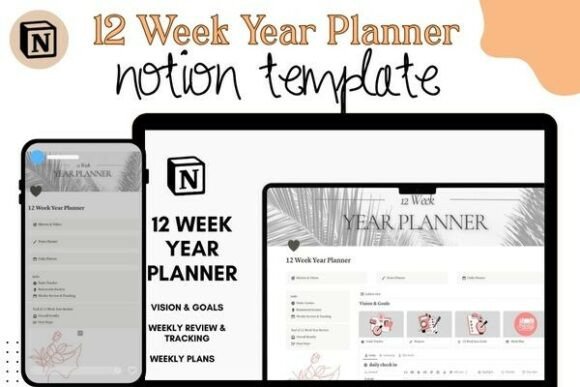
Turn a full year into twelve focused weeks. Define your vision, set measurable goals, and break them into weekly tasks. The template includes a daily planner, habit check-ins, a brainstorm space, and a final review of overall results. It is available in English only, and because it is digital, all sales are final.
Daily Life Planner with Calm Colors
A minimalist planner with a soft palette and a navigation bar, designed for a low-distraction routine. It has yearly, monthly, weekly, and daily planners, a finance tracker with automated calculators, a fitness and nutrition section, and a habit tracker. The seller describes it as ADHD-friendly, and it is a planning layout, not medical advice.
ADHD-Friendly Life Dashboard
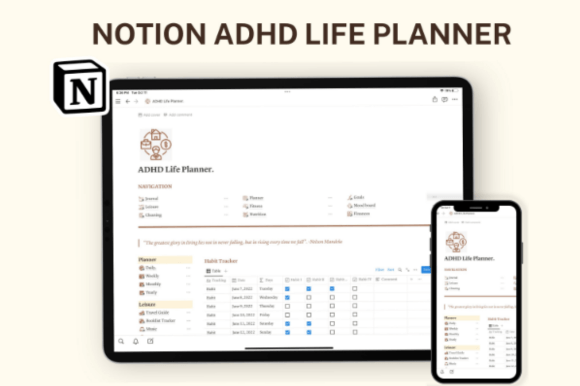
Organize daily life with a calm, minimalist design that limits distractions. Keep track of priority tasks, books and shows, and your finances with an automated finance tracker. The health planner helps you schedule workouts and meals, and every section can be customized with new sections whenever you need them.
Garden Planning and Care Tracker
A good choice for gardeners with a balcony pot, a backyard bed, or a shared community plot. Track seeds and seedlings from planting, along with watering, fertilizing, and expected harvest timing through the whole season. Logging care tasks means nothing gets forgotten during a busy week.
Plant Care and Harvest Tracker
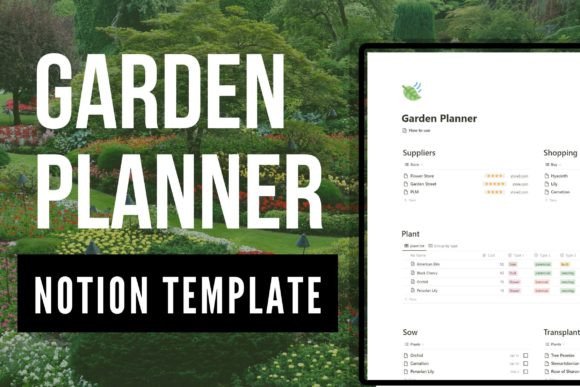
Stop guessing when to water, fertilize, or harvest. The planner tracks each plant from seed or seedling through the growing season, so you can see what needs care and when. It suits small patio gardens, large backyards, and community plots, with tools for planning, tracking, and nurturing your plants.
Recipe Notebook for Cocktail Lovers
A hobby database for home mixologists and bartenders. Sections for favorite recipes, new experiments, and seasonal drinks keep your best recipes in one place, so you can repeat a great drink or tweak it next time. It is also a neat example of how databases work outside of work.
Home Mixologist Drink Book

Craft, record, and keep your favorite cocktails in one place. The journal includes sections for favorite recipes, new creations, and seasonal drinks, so you can revisit a great mix or improve it. Bartenders and home mixologists alike can keep their recipe collection organized.
Prompt Generator and Image Gallery
For Midjourney users who want to stop losing good prompts. The template builds a prompt from property values you fill in and gives you compiled text to copy. A gallery stores your generated images next to the final prompt. It assumes you already understand Midjourney, so it works as an organizer rather than a course.
AI Art Prompt Library

Build prompts property by property, then copy the compiled prompt straight into Midjourney. Upload and save generated images with the final prompt in an organized gallery for later reference. The template includes instructions, property descriptions, and helpful links. At least a free Notion account is needed for all features.
Brand Strategy Document for Creatives
Built for creative businesses that want a clear brand foundation in one structured document. Sections cover story, purpose, and goals, mission and vision, core values, personas and competitors, ideal clients, voice and style, colour and typography, and a process and timeline.
Brand Planning Board for Creators
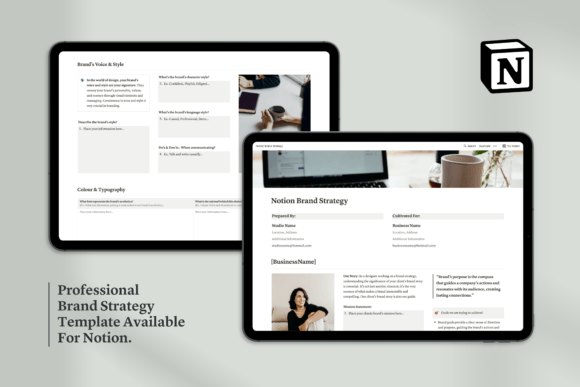
Build a compelling brand identity and connect with your audience on a deeper level. The template covers your story, mission and vision, core values, personas, voice and style, and colour and typography, plus process, timeline, terms, and an FAQ section. It is designed for creative businesses that want a simple, effective strategy.
Brand Intake Form for Clients
Useful before a project starts. Sections include personnel info, brand information, audience and competitors, and aesthetic principles. Clients answer questions about their goals, likes, dislikes, and inspirations, which gives you a clear brief to work from.
Client Intake Questionnaire Pages
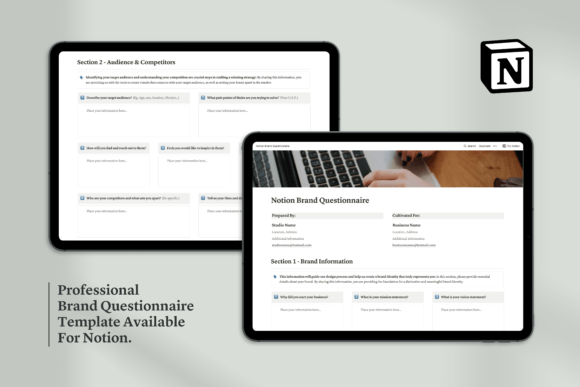
Collect the insights that shape a brand: story, mission, vision, target audience, pain points, and competitors. The questionnaire is split into clear sections, so each part of the brief is easy to answer. It also covers visual identity, client preferences, styles to avoid, and long-term goals.
Project Proposals Without the Hassle
For freelancers and small agencies who send proposals regularly. It includes sections for project overview, process, timeline, about us, portfolio case studies, pricing and packages, estimated cost, and terms, so every proposal follows the same structure.
Proposal Builder for Freelancers

Create polished project proposals without spending hours on formatting. The structure covers the overview, process, timeline, portfolio, pricing, and estimated cost. Add your logo, adjust colours, and share the proposal with your team in real time, so your focus stays on the content.
Design Contract Layout
A structured starting point for designers who need clear project terms. It includes general information, a contract introduction, terms and conditions, and a collaboration agreement. This is a template, not legal advice, so have a lawyer in your region review the wording before you use it with clients.
Designer Contract Structure
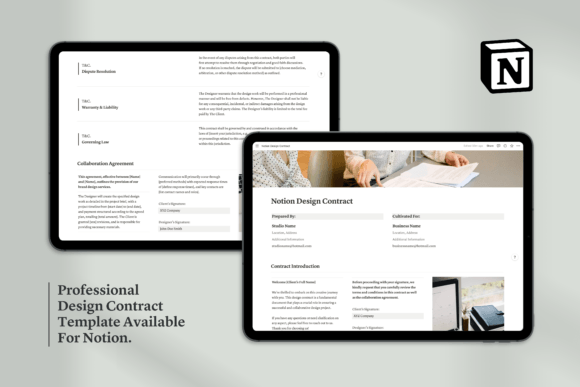
Set clear project terms from the start with a professionally structured contract. It covers general information, the introduction, terms and conditions, and a collaboration agreement. The layout is easy to customize for each project and gives both parties a shared reference, which reduces the risk of misunderstandings.
Branding Kit for Freelance Designers
A full client-project workflow in one place, made for freelance and startup designers. The kit contains five linked templates: a brand questionnaire, a project proposal, a strategy workbook, a creative direction page, and a brand presentation. Use it when you want the whole process connected from the first call to the final presentation.
Client Branding Kit in One Place
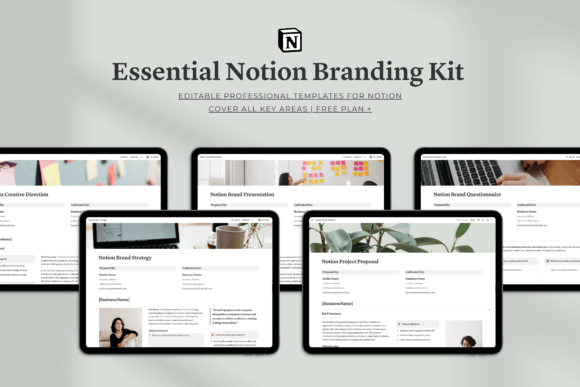
Simplify brand design with a complete kit that guides clients from first questions to final presentation. The five templates cover client questions, proposals, strategy, creative direction, and presentations. Duplicate the kit, customize the pages, and offer more value to every client in a competitive market.
How to Duplicate a Notion Template
Once you have chosen a template, here is how to use Notion templates in practice, step by step. The routine is the same for every pick in the list.
- Open the template link from the product page or from the PDF you receive after purchase or sign-up.
- Click Duplicate at the top right of the page.
- Choose the workspace where you want the copy.
- Customize: rename pages, delete sections you do not need, and adjust database properties.
Check the current access terms on the product page before you rely on any offer. Some templates may be free under current conditions, and terms can change.
Frequently Asked Questions
Is Notion Free for Beginners?
For most people learning how to use Notion, the free plan is enough. It covers personal use, with limits on some features, and it is sufficient for this guide and for most templates in the roundup.
How Long Does It Take to Learn Notion?
The basics take a few hours. Getting comfortable enough to run a personal system usually takes one or two weeks, especially if you follow the 7-day plan above.
Can I Use Notion on iPhone and iPad?
Yes. The app syncs across devices, so you can learn how to use Notion on your phone and tablet with the same workspace. Some templates are designed for desktop, so check the product description first.
What Is the Difference Between a Page and a Database?
A page is a single document. A database is a collection of items with properties and views, such as a task list you can sort by due date or view as a board.
Do I Have to Pay for the Templates?
Not every template is free. Some offers are available for a limited time under current conditions, so check the terms on the product page before you sign up. Prices and access can change.
Can I Use the Templates in Another Language?
Most listed templates are in English, and the 12-week planner is English only. Check each product page for language details before you duplicate it.
Can I Share a Notion Workspace with My Team?
Yes. Notion supports sharing and collaboration, and team features depend on your plan. If you are learning how to use Notion for group work, start with one shared project page and invite one or two people first.
Is a Template a Good Replacement for a Notion Course?
A template saves setup time, but learning the core blocks still matters. Pair any template with the tutorial steps in this guide, and you will understand why the pages are built the way they are, which is how you gain real confidence with how to use Notion.
Wrapping Things Up
You now have the core picture: how Notion organizes pages, databases, and views, how to set up a home page and a task database, and how the phone app fits into your day. Learning how to use Notion is easiest when you keep the first system small. Pick one template from the roundup that matches your main need, duplicate it this week, and customize two or three sections. Small steps add up quickly, and your first workspace does not have to be perfect. Bookmark this guide and come back to the 7-day plan when you are ready to expand.
Your first workspace is a click away, so pick a template and start building today.

Worth Checking Out
22 Notion 2027 Planner Templates That Make Every Week Feel Lighter

